
Trajectory Detail Views
When you click into a specific trajectory, ClawTrace provides four different views to analyze the agent's behavior. Each view reveals different aspects of the run.
Trace View
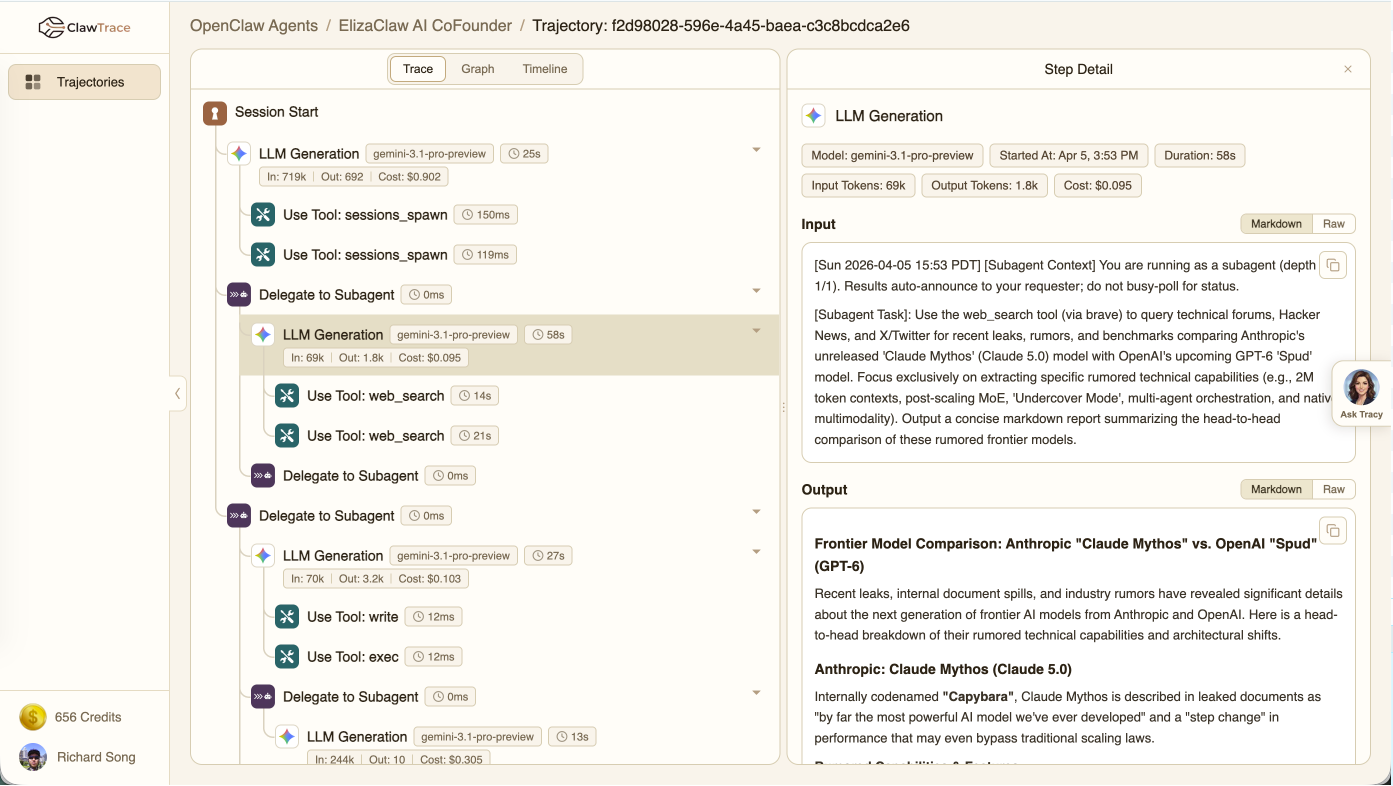
The trace view shows the complete execution path as an interactive tree. Each node represents a step the agent took — an LLM call, a tool execution, a sub-agent delegation, or a session event.
Reading the Tree
- Icons indicate the step type: session (keyhole), LLM (brain), tool (wrench), sub-agent (robot)
- Hierarchy lines show parent-child relationships between steps
- Metadata badges on each node display duration, token counts, and estimated cost
- Model badges on LLM nodes show which model was used (e.g.,
gemini-3.1-pro-preview)
Click any node to open the Step Detail panel, which shows the full input/output payloads.
Step Detail Panel
The right panel shows detailed information for the selected step:
- Input/Output payloads — Full request and response data with syntax highlighting
- Token counts — Input, output, and total tokens
- Duration — How long this step took
- Cost estimate — Based on model-specific pricing
- Error details — If the step failed, the error message and context
Call Graph View
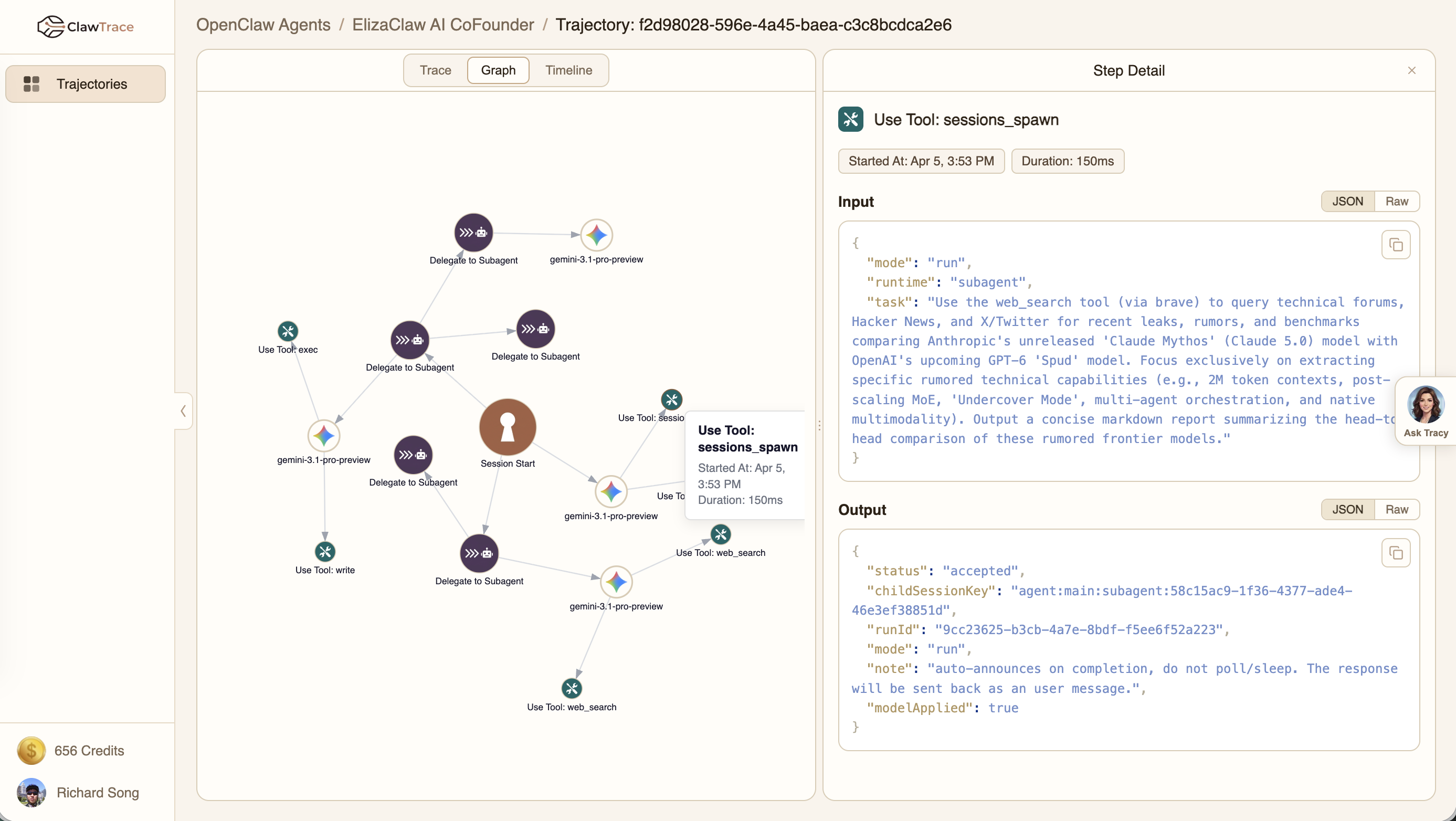
The call graph view visualizes the relationships between agents, tools, and models as an interactive node-link diagram.
- Agent nodes (blue) — Session actors
- Tool nodes (green) — Tools that were called
- Model nodes (gold) — LLMs that were queried
Hover over any node to see metrics. Click to select and inspect.
Timeline View
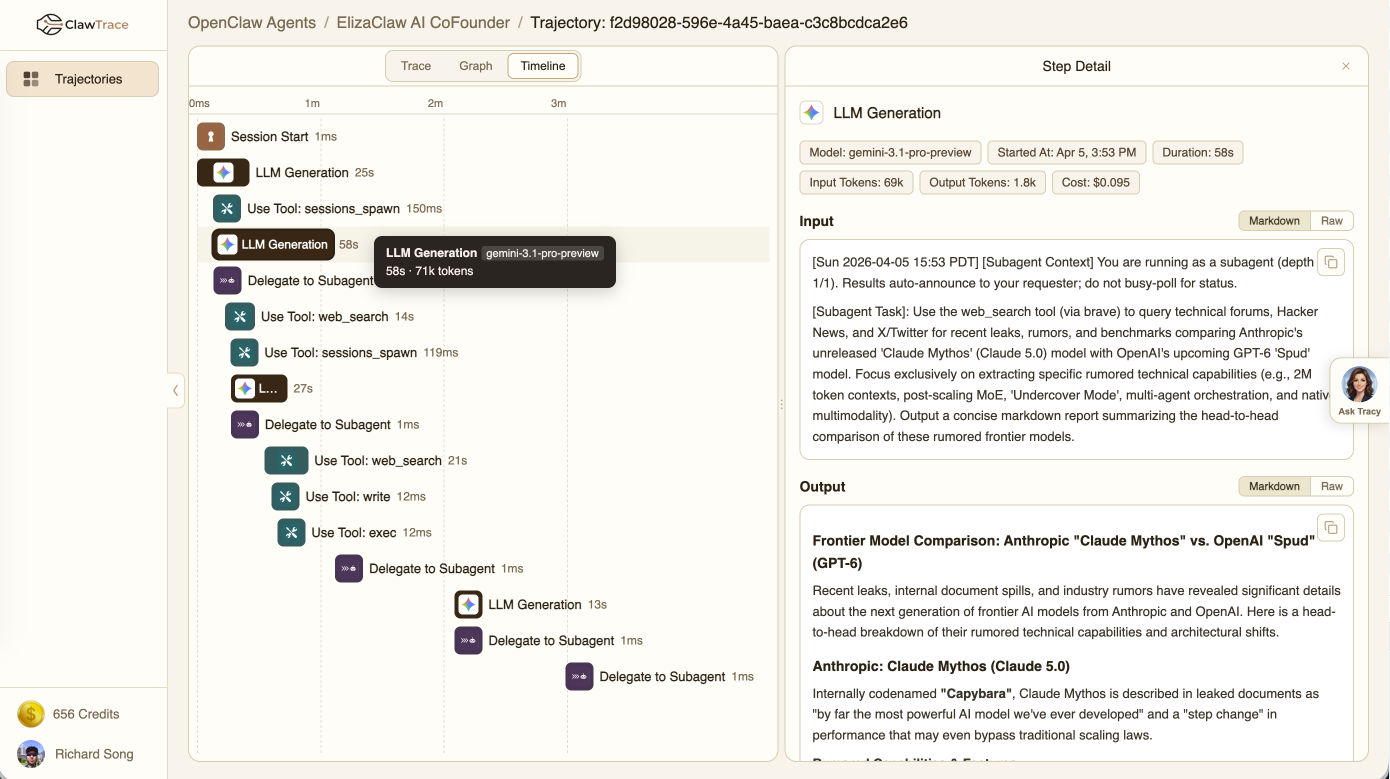
The timeline view presents a horizontal Gantt chart showing when each step started and how long it ran. This is ideal for identifying:
- Bottlenecks — Which steps take the longest
- Parallelism — Steps that run concurrently
- Gaps — Wasted time between steps
Each bar is colored by step type and sized proportionally to duration. Hover for details, click to select.
Switching Between Views
Use the view switcher at the top of the workspace to toggle between Trace View, Call Graph View, and Timeline View. The step detail panel is shared across all views — selecting a step in any view updates the inspector.